LibreOffice Calc is a free spreadsheet program. People use it for lists, calculations, tables, and reports. Students, teachers, accountants, and small business owners all rely on it.
Reaching for the mouse on every action is slow, especially in long sheets. Keyboard shortcuts let you format cells, move around, and edit data without opening menus.
What are shortcut keys?
A shortcut is a key combination that runs one command. For example:
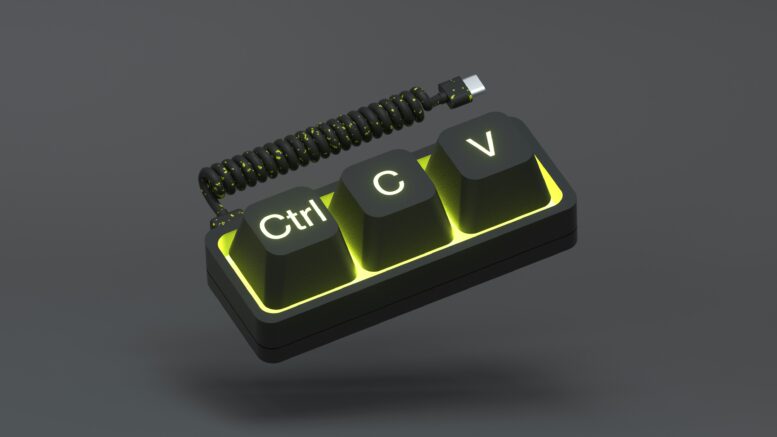
Ctrl + Ccopies the selected cells.Ctrl + Vpastes them somewhere else.
Shortcuts help most with repeat work like attendance records, sales reports, expense sheets, exam results, and inventory lists. Learn the ones you use daily and ignore the rest.
Essential shortcuts
These cover files, editing, and searching.
| Action | Shortcut |
|---|---|
| New spreadsheet | Ctrl + N |
| Open a file | Ctrl + O |
| Save | Ctrl + S |
| Save As | Ctrl + Shift + S |
Ctrl + P |
|
| Copy | Ctrl + C |
| Cut | Ctrl + X |
| Paste | Ctrl + V |
| Undo | Ctrl + Z |
| Redo | Ctrl + Y |
| Select all | Ctrl + A |
| Find | Ctrl + F |
| Find and replace | Ctrl + H |
| Close the current document | Ctrl + W |
Example: You have a list of 200 products and one name is misspelled throughout.
- Press
Ctrl + H. - Type the wrong spelling and the right one.
- Review the matches.
- Apply the replacement.
Save with Ctrl + S often, and always before a big change.
Cell formatting shortcuts
Formatting makes a sheet easier to read. These are handy for invoices, reports, and result sheets.
| Action | Shortcut |
|---|---|
| Bold | Ctrl + B |
| Italic | Ctrl + I |
| Underline | Ctrl + U |
| Open Format Cells dialog | Ctrl + 1 |
| Percentage format | Ctrl + Shift + 5 |
| Date format | Ctrl + Shift + 3 |
| Currency format | Ctrl + Shift + 4 |
| Number format with two decimals | Ctrl + Shift + 1 |
| Standard number format | Ctrl + Shift + 6 |
Some of these can behave differently depending on your operating system, keyboard layout, or LibreOffice version. If one doesn’t work, check Tools > Customize > Keyboard.
A quick example
Say you’re building a monthly expense report:
- Make the column headings bold.
- Apply currency format to the amounts.
- Apply percentage format to the budget comparison column.
Use Ctrl + 1 when you need more control over decimals, dates, borders, or alignment.
One thing to remember: formatting changes how a value looks, not what it is. A cell showing a currency symbol still holds a number, and formulas can still use it.
Navigation shortcuts
Scrolling through thousands of rows wastes time. These shortcuts get you where you’re going.
| Action | Shortcut |
|---|---|
| Move one cell | Arrow keys |
| Start of the row | Home |
| Start of the sheet | Ctrl + Home |
| Last used cell | Ctrl + End |
| One screen down | Page Down |
| One screen up | Page Up |
| Next sheet | Ctrl + Page Down |
| Previous sheet | Ctrl + Page Up |
| Open the Navigator | F5 |
| Jump to the Name Box | Ctrl + Shift + T |
To go to a specific cell, use the Name Box next to the formula bar. Type a reference like D2500 and press Enter.
Example: A sales report has 5,000 rows and you need cell D2500. Typing it in the Name Box is much faster than scrolling.
The original draft listed Ctrl + L for “go to cell.” In Calc, Ctrl + L aligns text left, so I replaced it with the Name Box method.
Data entry and editing shortcuts
Typing and fixing data takes up most spreadsheet time. These cut down on repeated work.
| Action | Shortcut |
|---|---|
| Edit the active cell | F2 |
| Insert a line break inside a cell | Ctrl + Enter (while editing the cell) |
| Insert today’s date | Ctrl + ; |
| Insert the current time | Ctrl + Shift + ; |
| Fill selected cells downward | Ctrl + D |
| Toggle AutoFilter | Ctrl + Shift + L |
| Spell check | F7 |
Fill commands need a selected range. For filling to the right, use Sheet > Fill Cells > Fill Right. The draft’s Alt + R isn’t a reliable default.
Tips for learning shortcuts
- Pick three to five shortcuts you use every day.
- Practice them for a week before adding more.
- Keep this table nearby until they feel automatic.
- If a shortcut fails, check whether another app or your keyboard layout is taking it.




Be the first to comment on "LibreOffice Calc Shortcut Keys"